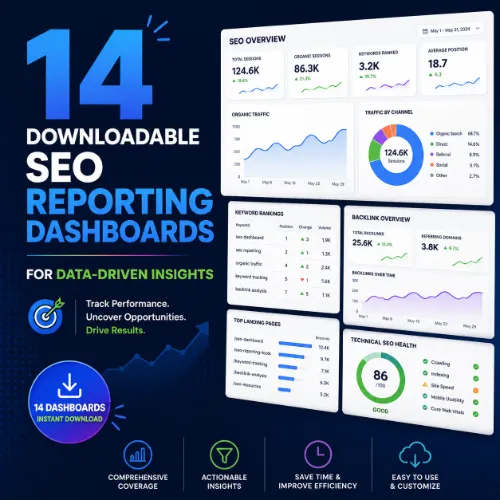
downloadable SEO reporting dashboards Key Takeaways
Pre-built downloadable SEO reporting dashboards save hours of manual data aggregation and help teams spot trends, diagnose issues, and communicate results to stakeholders.
- Choose a downloadable SEO reporting dashboards template that matches your tech stack — Google Looker Studio, Excel, or Tableau — for the smoothest setup.
- The best templates include pre-connected data sources for Google Search Console, Google Analytics 4, Ahrefs, and backlink tools, so you don’t need to configure every metric manually.
- Balance automation with customization: a good template provides a solid structure but allows you to add custom metrics or rename labels to align with client jargon.
Why Downloadable SEO Reporting Dashboards Save Time and Improve Decisions
SEO reporting is notorious for its complexity. Between organic traffic trends, keyword position changes, backlink fluctuations, and technical site health, it is easy to get lost in raw data. A well-designed dashboard turns that data into a story — highlighting what matters most, what changed, and what needs attention. Downloadable SEO reporting dashboards give you a head start by providing a ready-made structure that you can populate with your own data. For a related guide, see 14 Keyword Position Checkers With Powerful Reporting Features.
Many teams spend 30 to 40 percent of their reporting time on formatting and data extraction. By using a pre-built template, you reduce that overhead significantly. You also reduce the risk of overlooking key metrics because the template’s layout has already been tested by other practitioners. Whether you are an agency that reports on multiple clients or an in-house SEO specialist managing one site, a solid dashboard helps you communicate ROI clearly.
What to Look for in a Downloadable SEO Dashboard Template
Not all templates are created equal. Before you download a dashboard, evaluate these criteria:
- Data source compatibility: Does the template connect directly to your analytics, search console, and third-party SEO tools? Looker Studio templates often include built-in connectors for GA4 and GSC, while Excel templates may require manual CSV imports.
- Metric relevance: The dashboard should track metrics that align with your goals — organic sessions, keyword rankings, click-through rates, backlink growth, and Core Web Vitals performance.
- Visual clarity: Avoid cluttered templates. The best dashboards use clean charts, conditional formatting, and a logical flow that guides the reader from top-level KPIs to deeper analysis.
- Customization ease: You should be able to add or remove metrics, change date ranges, and brand the dashboard without breaking formulas or data connections.
14 Downloadable SEO Reporting Dashboards for Agencies and In-House Teams
Below is a curated list of 14 ready-to-use dashboard templates. Each entry includes a brief description, key features, and a link to download or access the template. The list covers tools like Google Looker Studio, Excel, Google Sheets, and Tableau so you can find a format that fits your workflow.
1. SEO Overview Dashboard – Looker Studio
Key features: Pre-built data connectors for Google Search Console and Google Analytics 4. It shows organic sessions, impressions, average position, and top landing pages in a single-pane view. For a related guide, see Optimize Your Downloads for SEO: 7 Essential Best Practices.
Download the SEO Overview Dashboard Template.
2. Monthly SEO Report – Excel
Key features: Comprehensive monthly reporting sheet with tabs for traffic data, keyword rankings, and competitor benchmarks. Uses conditional formatting to highlight month-over-month changes.
Get the Monthly SEO Report Excel Template.
3. Keyword Tracking Dashboard – Google Sheets
Key features: Connect your keyword data from Ahrefs or Semrush. Includes a pivot table for position distribution and a line chart for average position over time.
Access the Keyword Tracking Dashboard Template.
4. Technical SEO Audit Dashboard – Looker Studio
Key features: Integrates with Sitebulb or Screaming Frog data. It visualizes crawl issues, duplicate content counts, and Core Web Vitals status across your domains.
Download the Technical SEO Audit Dashboard.
5. Backlink Growth Dashboard – Google Sheets
Key features: Tracks new and lost referring domains, anchor text diversity, and domain rating changes. Includes a section for link prospects and outreach status.
Get the Backlink Growth Dashboard Template.
6. Client SEO Report – Looker Studio
Key features: A white-label dashboard designed for agencies. It includes a summary card with ROI metrics, traffic trends, and a sidebar with key wins and action items.
Download the Client SEO Report Template.
7. Content ROI Dashboard – Excel
Key features: Connects page-level traffic data with conversion metrics. You can assign revenue estimates to each article and calculate cost-per-click savings.
Access the Content ROI Dashboard Template.
8. Local SEO Dashboard – Looker Studio
Key features: Tracks Google Business Profile insights, local keyword rankings, and review sentiment. Includes a map visualization of service-area performance.
Download the Local SEO Dashboard Template.
9. Competitor Analysis Dashboard – Google Sheets
Key features: Side-by-side comparison of organic traffic, estimated top keywords, and domain authority. Uses sparklines to show 90-day trends for each competitor.
Get the Competitor Analysis Dashboard Template.
10. Ecommerce SEO Dashboard – Looker Studio
Key features: Tracks product page impressions, category-level rankings, and add-to-cart rates from Google Analytics. Also monitors product review schema implementation.
Download the Ecommerce SEO Dashboard.
11. Traffic Forecast Dashboard – Excel
Key features: Uses historical organic session data and seasonal factors to project future traffic. Includes a sensitivity analysis section for estimating impact of algorithm changes.
Access the Traffic Forecast Dashboard Template.
12. Link Building Tracker – Google Sheets
Key features: Manages outreach progress, logs sent emails, replies, and link placements. Automatically calculates outreach conversion rates per campaign.
Get the Link Building Tracker Template.
13. Core Web Vitals Dashboard – Looker Studio
Key features: Connects to Chrome UX Report API and CrUX data. Shows LCP, FID, and CLS scores across device types, with a breakdown of poor, needs-improvement, and good URLs.
Download the Core Web Vitals Dashboard.
14. Executive Summary Dashboard – Tableau
Key features: A high-level view designed for C-level stakeholders. Uses KPI cards, sparklines, and a priority matrix to highlight wins, issues, and recommended actions.
Access the Executive Summary Dashboard Template.
Best Practices for Choosing and Using Downloadable SEO Reporting Dashboards
Selecting the right template is only the first step. To make your dashboard a reliable tool for decision-making, follow these practices:
Match the Dashboard to Your Reporting Cadence
Monthly dashboards require a different level of detail than weekly or daily ones. Monthly reports should highlight trends and long-term progress, while weekly dashboards focus on anomalies and immediate fixes. Choose a template that fits your reporting rhythm rather than trying to cram all data into one view.
Audit Your Data Sources First
Before you connect a template to your accounts, verify that your tracking is set up correctly. Missing or misconfigured Google Analytics 4 properties, Search Console not verified, or disconnected Ahrefs API keys will produce misleading outputs. A clean data foundation makes the dashboard trustworthy.
Customize Labels and Metrics for Your Audience
An internal team might understand terms like “DR” or “URL Rating,” but a client or executive may prefer simpler language. Many templates allow you to rename metrics. Take the time to replace technical jargon with terms that align with your audience’s business goals. For example, change “organic sessions” to “website visits from search” if that resonates better.
Automate Data Refresh Where Possible
Looker Studio and Tableau can connect live data sources so your dashboard updates automatically. Excel and Google Sheets templates often require manual CSV uploads or API scripts. If you use a static template, set a recurring calendar reminder to refresh the data — otherwise the dashboard becomes stale.
Add an Action Items Section
A dashboard that only reports what happened is only half useful. Add a dedicated section (or a sticky note area) where you interpret the data and list recommended next steps. This turns the dashboard from a passive report into an actionable tool.
SEO Entities and Their Functions
When working with downloadable SEO reporting dashboards, understanding the underlying entities helps you select relevant metrics and interpret the data correctly:
- Keyword entities: search volume, keyword difficulty (KD), traffic potential, and SERP features (featured snippets, People Also Ask) inform which queries to prioritize and what content format will likely rank.
- Backlink entities: referring domains, dofollow/nofollow ratio, anchor text distribution, and lost backlinks reveal authority flow and potential link-building opportunities.
- Technical SEO entities: crawl errors, Canonical tags, duplicate content, Core Web Vitals (LCP, FID, CLS) — these show structural issues that can block rankings or degrade user experience.
- Page entities: top pages by traffic, by links, and by conversions help you identify what’s working and what needs optimization.
- Competitor entities: comparing organic keywords, domain rating, and content gaps reveals where rivals are outperforming and where you can capture new traffic.
Useful Resources
To dive deeper into building and customizing your own SEO reporting dashboards, check out these resources:
- Google Looker Studio Help Center – Get started with dashboards and connectors.
- Ahrefs Blog – The Best SEO Reporting Tools for Actionable Insights.
Frequently Asked Questions About downloadable SEO reporting dashboards
What is a downloadable SEO reporting dashboard?
A downloadable SEO reporting dashboard is a pre-built template — often for tools like Google Looker Studio, Excel, or Tableau — that you can import and connect to your own data sources to track organic performance without building a report from scratch.
Do I need coding skills to use these dashboards?
No. Most templates are drag-and-drop or use simple spreadsheet formulas. Basic familiarity with the tool is helpful, but you don’t need to write code.
Can I use these dashboards for multiple clients?
Yes. Templates designed for agencies are often built for multi-client use. Look for templates that allow white-label branding or easy data-source swapping.
Which tool is best for a beginner: Looker Studio or Excel?
Excel is simpler for single-user manual reporting. Looker Studio is better for live data connections and sharing interactive reports with a team or client.
Are there free downloadable SEO dashboard templates ?
Many of the templates listed above are free. Some advanced templates from tool vendors like Databox or Semrush may require a paid subscription.
How often should I update my dashboard data?
For weekly or monthly reporting, manual data refresh is fine. For daily monitoring, use a tool with automatic data connectors like Looker Studio or Tableau.
Can I add custom metrics to a downloaded template?
Yes — most templates allow you to add new columns, charts, or data sources. Just be careful not to break existing formulas or data connections.
What metrics should every SEO reporting dashboard include?
At minimum, include organic sessions, keyword positions (top 10, top 50), impressions, click-through rate, and backlink growth. Add technical health scores and conversion data as needed.
How do I connect Google Search Console to a Looker Studio dashboard?
Within Looker Studio, click “Add Data” > “Google Search Console” > select your property, then choose the metrics you want to import. The template will automatically pick up the data if it’s designed for GSC.
Can I share my dashboard with someone who doesn’t have a Looker Studio account?
Yes — Looker Studio allows you to share reports via a public link or embed them on a website. You can set viewer permissions so they can see but not edit the data.
What is the difference between a dashboard and a report?
A dashboard is typically a single-page view with real-time or near-real-time data, while a report is a multi-page document that includes analysis and commentary. Many downloadable templates combine both.
Are these dashboards mobile-friendly?
Looker Studio and Tableau dashboards auto-resize for mobile viewing. Excel and Google Sheets templates are best viewed on a desktop or laptop.
Can I use a dashboard for competitor tracking?
Yes. The Competitor Analysis Dashboard (item #9) and the Backlink Growth Dashboard (item #5) include sections specifically designed for tracking rival performance.
How do I protect sensitive client data in shared dashboards?
Set viewer-only permissions, avoid embedding raw raw data in public links, and use your tool’s built-in privacy settings. For Looker Studio, you can restrict data access by domain.
What is the best template for an agency with 20+ clients?
The Client SEO Report Dashboard by Looker Studio (item #6) is built for multi-client usage and includes white-label branding options.
Can I automate the export of my dashboard to PDF for client reports?
Yes — Looker Studio and Tableau both support scheduled PDF exports. Excel templates can be exported manually to PDF as well.
Do I need a subscription to Semrush or Ahrefs to use their templates?
Some templates require a paid subscription to connect data. Others, like the free Keyword Tracking Dashboard by Rank Ranger, work with free tiers.
What is the best tool for a small in-house team?
Google Looker Studio is free, flexible, and integrates with most Google services. It’s ideal for small teams with limited budgets.
Can a downloadable dashboard help me prove SEO ROI to executives?
Yes — the Executive Summary Dashboard (item #14) and the Content ROI Dashboard (item #7) are specifically designed to communicate ROI in clear business terms.
How do I know if a template is compatible with my existing data sources?
Check the template’s description for supported connectors. Most Looker Studio templates list which data sources they work with. If in doubt, open the template and add a sample data source.