Why Core Web Vitals Matter in 2026
Core Web Vitals are now one of the most important page experience signals that influence how your WordPress site ranks in Google Search. They measure how fast your pages load, how quickly users can interact, and how stable the layout feels while everything is loading. When your Core Web Vitals scores are poor, users bounce, conversions drop, and your SEO performance suffers.
In 2026, Core Web Vitals remain a meaningful ranking factor, especially on mobile devices where most people browse, research, and buy. Instead of treating them as a one‑time technical task, you need a repeatable Core Web Vitals checklist you can reuse whenever you launch new pages, install plugins, change themes, or redesign key templates.
This guide focuses specifically on WordPress performance optimization so you can transform slow, clunky pages into a fast, stable, user‑friendly experience that both search engines and visitors trust.
If you target users in different countries or regions, Core Web Vitals also play a big role in your GEO strategy because performance can vary by location if hosting and CDNs are not configured correctly. Fast, stable performance for users in Southeast Asia, North America, or Europe leads to better engagement and sends stronger positive signals in each market.
What Are Core Web Vitals?
Core Web Vitals are a set of web performance metrics that focus on real‑world user experience. They cover three crucial aspects of how a page feels to visitors: loading performance, interactivity, and visual stability.
The three main metrics are:
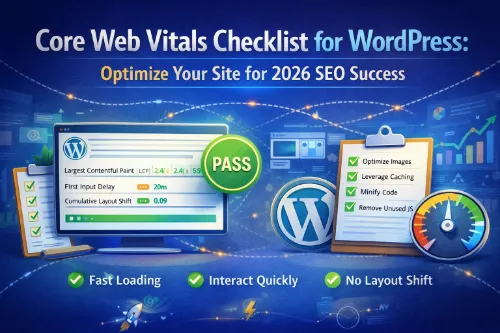
- Largest Contentful Paint (LCP) – measures how quickly the largest piece of content in the viewport becomes visible.
- Interaction to Next Paint (INP) – measures how fast the page responds when users click, tap, or type, and has replaced First Input Delay as the responsiveness metric.
- Cumulative Layout Shift (CLS) – measures how much layout shifting occurs as the page loads.
Google documents these metrics and their “good” thresholds in its official Core Web Vitals documentation, which you can review here: Understanding Core Web Vitals and Google search results.
A Core Web Vitals checklist is simply a structured list of steps that helps you improve these three metrics in a repeatable way. On WordPress sites, that usually includes image optimization, caching and CDN setup, JavaScript and CSS optimization, plugin cleanup, and theme performance tuning.
From an SEO point of view, Core Web Vitals act as page experience signals that Google may use as a tiebreaker when similar pages compete. They don’t replace relevance or backlinks, but they can absolutely be the deciding factor when you’re up against other sites with similar content and authority. As a result, many site owners now treat Core Web Vitals optimization as a standard part of their technical SEO workflow.
How to Measure Core Web Vitals on WordPress
Before you can fix anything, you need to measure Core Web Vitals properly on your WordPress site. The main tools you’ll rely on combine both “lab” data (simulated tests) and “field” data (real‑user data) for a clearer picture.
Key tools include:
- PageSpeed Insights – The free tool at PageSpeed Insights lets you test any URL and see Core Web Vitals metrics, plus optimization suggestions based on both lab and field data.
- Lighthouse – Built into Chrome DevTools, Lighthouse runs a detailed performance audit with web performance metrics and diagnostics you can use to debug slow pages.
- Google Search Console – The Core Web Vitals report in Search Console shows how your pages perform based on real‑world Chrome User Experience Report (CrUX) data.
- WordPress performance plugins – Some performance plugins integrate PageSpeed Insights Core Web Vitals scores into your WordPress dashboard to simplify ongoing monitoring.
Start with your most important URLs—homepage, top landing pages, high‑traffic blog posts, and revenue‑driving pages. When you test, look at each metric individually and note which templates tend to have issues.
By mapping each problem to the metric it affects, you can build a focused Core Web Vitals troubleshooting guide instead of randomly tweaking settings and hoping for the best.
Step 1 – Build a Solid WordPress Performance Foundation
A strong Core Web Vitals checklist starts with a strong WordPress foundation. If your hosting is slow, your theme is bloated, and your plugins are out of control, no amount of micro‑optimization will deliver consistently good scores.
Focus on these fundamentals:
- Choose performance‑focused hosting
Good hosting with fast server response time and capacity headroom plays a big role in Core Web Vitals scores, especially LCP and INP. For multi‑region audiences, pair a quality host with a CDN so users in different locations experience similar performance. - Use a lightweight, performance‑optimized theme
Heavy, feature‑rich themes often ship with large CSS and JavaScript bundles that slow down your site. A lean, performance‑oriented theme makes site speed optimization much easier. - Audit and minimize plugins
Too many plugins—or a few badly coded ones—can hurt all three Core Web Vitals metrics, especially INP. Audit your plugins regularly and keep only what you really need. - Keep WordPress, themes, and plugins updated
Updates frequently include performance improvements and bug fixes that affect loading performance, responsiveness, and stability.
Taking care of this foundation aligns with the kind of WordPress‑specific advice recommended in detailed guides like “Core Web Vitals Optimization: Complete Guide for 2026.”
Step 2 – LCP Checklist: Fix Slow Loading Content
Largest Contentful Paint (LCP) measures how long it takes for the main content in the viewport to become visible, and Google recommends LCP occur within 2.5 seconds for a good experience.
On WordPress sites, the LCP element is often a hero image, a large featured image, a main heading block, or a key product image. To improve it, follow this LCP checklist:
- Identify the LCP element per template
Use PageSpeed Insights or Lighthouse to see which element is reported as LCP on each template. - Optimize images aggressively
Compress images, convert them to WebP, and serve appropriately sized versions to mobile and desktop users. Image optimization is one of the fastest wins for improving LCP and overall loading performance. - Configure lazy loading correctly
Lazy load below‑the‑fold images and videos while ensuring the main LCP image is not delayed by lazy loading. - Preload critical resources
Preload the hero image, critical CSS, and key fonts used above the fold so the browser can render your main content faster. - Reduce server response time (TTFB)
Combine caching, CDN usage, and database optimization to improve initial response time, which strongly influences LCP.
You can see similar prioritization of LCP improvements in resources like the WordPress‑focused guide from WP Rocket on Google Core Web Vitals for WordPress.
Step 3 – INP Checklist: Improve Interactivity and Responsiveness
Interaction to Next Paint (INP) is the Core Web Vitals metric for responsiveness that fully replaced First Input Delay in 2024. It measures how long it takes for the page to respond visually after user interactions, and Google recommends an INP of less than 200 milliseconds for good performance.
On WordPress, INP issues often stem from heavy JavaScript, complex page builder layouts, and too many third‑party scripts. To improve it, use this INP optimization checklist:
- Reduce JavaScript execution
Remove unused scripts, defer or delay non‑critical JavaScript, and avoid loading large libraries on every page when only a few pages need them. - Limit third‑party scripts
Audit chat widgets, analytics tags, A/B testing scripts, ad networks, and embedded social feeds, and remove or replace anything that significantly hurts responsiveness. - Optimize event handlers
Implement debouncing or throttling for scroll and resize events and prefer passive event listeners where possible to reduce main thread blocking. - Streamline page builder layouts
Simplify layouts created with visual builders and avoid deeply nested structures that cause extra work for the browser.
Google’s article “Introducing INP to Core Web Vitals” explains how this metric works and why it replaced FID.
Step 4 – CLS Checklist: Stop Layout Shifts
Cumulative Layout Shift (CLS) measures how much visual content jumps around during page load, and Google recommends keeping CLS below 0.1 for a good experience. Unexpected layout shifts are particularly frustrating on mobile where mis‑taps are common.
On WordPress, CLS problems typically come from images without dimensions, late‑loading ads or banners, and dynamic elements injected above existing content. Use this CLS optimization checklist:
- Set explicit size attributes
Always specify width and height (or an aspect ratio) for images, videos, and iframes so the browser can reserve the right space. - Reserve space for ads and embeds
Use fixed containers for ad slots, embedded videos, and other third‑party content to prevent them from pushing content down when they appear. - Optimize font loading
Preload critical fonts and usefont-displaystrategies likeswapto reduce layout shifts associated with late font rendering. - Avoid inserting elements above existing content
Don’t inject cookie banners, sticky bars, or promo strips above the main content after it has already started rendering; place them in reserved areas or overlay them instead.
These recommendations align with the broader Web Vitals guidance on web.dev’s Web Vitals articles.
WordPress Plugins and Tools to Support Your Checklist
You can optimize Core Web Vitals manually, but the right plugins and tools streamline the process substantially. The key is to choose performance‑first tools rather than adding more bloat.
Useful plugin categories include:
- Caching and performance plugins
Plugins like those discussed in Google Core Web Vitals for WordPress: How to Test and Improve can handle page caching, browser caching, minification, compression, and lazy loading. - Image optimization plugins
Third‑party guides recommend tools like ShortPixel or Imagify to compress images, convert to WebP, and generate responsive sizes, all of which directly improve LCP. - Asset management plugins
Asset control plugins let you selectively disable scripts and styles on specific pages, reducing unnecessary JavaScript and CSS and helping INP. - Database optimization tools
Database maintenance tools clean up revisions and unused data to support faster queries and slightly improve performance under load.
You can also refer to resources like “Improve Core Web Vitals on Your WordPress Site” by BigScoots for hosting‑focused optimization ideas.
Ongoing Monitoring and Maintenance Checklist
Core Web Vitals are not a one‑time project because changes to content, themes, plugins, or hosting can all affect performance. To keep your site healthy, turn this into an ongoing maintenance habit.
Use this simple ongoing Core Web Vitals checklist:
- Monthly
- Run PageSpeed Insights tests on your top traffic pages and compare metrics over time.
- Check the Core Web Vitals report in Google Search Console for new “poor” or “needs improvement” patterns.
- Quarterly
- Audit your plugins and remove or replace anything that significantly hurts performance.
- Review hosting performance and consider upgrading plans or infrastructure if traffic or content has grown.
- After major changes
- Re‑measure Core Web Vitals whenever you change themes, add major plugins (e.g., builders, ad managers), or redesign key templates.
This aligns with industry advice that stresses ongoing monitoring using tools like PageSpeed Insights, Search Console, and Lighthouse.
Frequently Asked Questions
- What is a good Core Web Vitals score for WordPress?
A good score means all three metrics—LCP, INP, and CLS—fall within Google’s “Good” thresholds in tools like PageSpeed Insights and Search Console. - How do I measure Core Web Vitals on my WordPress site?
You can measure them using PageSpeed Insights, Lighthouse in Chrome, and the Core Web Vitals report in Google Search Console. - Is Core Web Vitals a ranking factor in 2026?
Core Web Vitals are part of Google’s page experience signals and act as a secondary ranking factor or tiebreaker when other signals like relevance are similar. - Which plugins help improve Core Web Vitals on WordPress?
Performance‑focused caching plugins, image optimization tools, and asset management plugins are typically recommended in WordPress‑specific Core Web Vitals guides. - How often should I check Core Web Vitals?
You should check key pages at least monthly and always re‑test after major theme, plugin, or hosting changes.
Turn Your Checklist into a Habit
Core Web Vitals are no longer optional for serious WordPress site owners, especially those competing in saturated niches and multiple regions. By following a clear Core Web Vitals checklist—measuring LCP, INP, and CLS, strengthening your WordPress foundation, and using the right tools—you can deliver a fast, stable experience that supports SEO, GEO, and user satisfaction together.