SEO Chrome extensions Key Takeaways
Mastering SEO Chrome extensions separates average digital marketers from true search experts.
- The right SEO Chrome extensions save hours of manual checking and reveal opportunities you would otherwise miss.
- Each extension serves a specific purpose — choose the ones that match your daily workflow.
- Combine a few core tools to build a lightweight, always-available SEO toolkit.
Why SEO Chrome extensions Matter for Modern Search Optimization
Search engine optimization moves fast. Algorithms update weekly, competitor tactics shift overnight, and every page you visit contains clues about ranking success. SEO Chrome extensions put that intelligence into your browser so you never have to switch tabs just to check a title tag or see which backlinks a page earned. For a related guide, see 25 Best SEO Tools Compared for 2026.
Think of these extensions as your personal assistant for everything SEO. They highlight technical errors, show you keyword difficulty at a glance, and even pull up the site’s most organic traffic pages. For busy content marketers, agency pros, and freelance consultants, these tools turn every web session into a mini audit. For a related guide, see Top Google Cloud Services Every Digital Marketer Should Know.
How to Choose the Right SEO Chrome extensions for Your Workflow
Not every tool fits every role. A local SEO specialist needs different data than a technical auditor who crawls JavaScript-heavy sites. Start by aligning each extension with a specific task you repeat daily.
Criteria for Selecting Your Toolkit
- Data accuracy: Does the extension pull from a reliable source like Ahrefs, Majestic, or Google Search Console?
- Ease of use: Can you understand the overlay without a manual?
- Performance impact: Does it slow down your browser or cause memory issues?
- Privacy: What data does the extension collect, and does it require login?
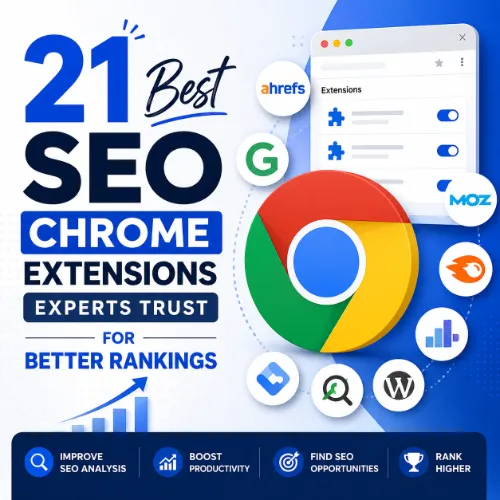
Below, we break down the 21 SEO Chrome extensions that experts actually rely on. Each entry includes the tool’s standout feature and a pro tip to maximize its value.
21 Essential SEO Chrome extensions Every Expert Uses
1. Ahrefs SEO Toolbar
This extension gives you instant metrics for any URL or SERP you visit — Domain Rating (DR), URL Rating (UR), organic traffic, and keyword data. The built-in broken link checker also highlights 404s on any page.
Expert tip: Use the SERP overlay to see keyword difficulty and search volume directly on Google results. It helps you decide which queries to target before you even open a spreadsheet.
2. MozBar
MozBar offers page authority and domain authority at a glance plus on-page element analysis. You can toggle between Google, Bing, and Yahoo SERP results.
Expert tip: Use the “Highlight followed/nofollow links” feature during content outreach. It lets you quickly scan which external links a competitor earned.
3. Detailed (by SEOQuake)
One of the longest-standing extensions, Detailed combines an SEO toolbar with a page audit panel. It shows social shares, Alexa rank, keyword density, and internal/external link counts.
Expert tip: Export the audit report as a CSV file and keep it as a baseline for tracking changes during site migrations or redesigns.
4. Keywords Everywhere
This extension overlays keyword data — search volume, CPC, competition — directly on Google search results, YouTube, and Amazon. It also provides related keywords and long-tail suggestions.
Expert tip: When you find a high-volume keyword, click the “Trends” tab inside the extension to see seasonal demand. That way you target queries when traffic peaks.
5. Wappalyzer
Wappalyzer identifies the technology stack of any website — CMS, frameworks, analytics tools, CDNs, and more. It’s essential for technical SEO audits and competitive analysis.
Expert tip: Use it to check a competitor’s hosting provider or content delivery network. Sometimes a slow site is due to poor infrastructure, not SEO mistakes.
6. Lighthouse (Built into Chrome DevTools)
Lighthouse runs a full performance, accessibility, and SEO audit for any page. It generates a score and a list of specific improvements, like image optimization or render-blocking resources.
Expert tip: Run Lighthouse in incognito mode to avoid browser extensions interfering with the results. Always test on mobile viewport after desktop.
7. Check My Links
This lightweight extension scans every link on a page and color-codes them as valid, broken, or redirecting. It’s a lifesaver for content audits and link reclamation.
Expert tip: Use it before publishing guest posts or resource pages to ensure you aren’t sending readers to dead URLs.
8. Redirect Path
Redirect Path shows you the full redirect chain (301, 302, 404, or 500 status codes) for any URL you visit. It also reveals server headers and response times.
Expert tip: Use it after migrating a site to verify that every old URL correctly maps to the new one without unnecessary redirect hops.
9. Open SEO Stats
A compact toolbar that provides page rank, Alexa rank, Google index count, backlink data, and social shares. It pulls data from multiple sources including Google and Majestic.
Expert tip: The built-in “Whois” lookup helps you quickly verify domain ownership or check when a domain expires — useful for competitive research.
10. SEO Minion
SEO Minion offers on-page analysis (H1-H6 structure, alt text, link checks), a page diff tool, broken link checker, and a SERP preview feature that shows how your snippet appears.
Expert tip: Use the “Preview Google SERP” feature to check title tag length and meta description cut-off before publishing a new page.
11. SimilarWeb
SimilarWeb provides traffic estimates, top referral sources, geographic audience data, and site ranking for any URL. It’s invaluable for competitor benchmarking.
Expert tip: When evaluating a competitor, look at their top traffic-driving channels. If a strong percentage comes from organic search, study their content strategy.
12. BuzzSumo
BuzzSumo’s Chrome extension shows social shares, backlinks, and top-performing content for any article or domain. You see which headlines and topics resonate most.
Expert tip: Hover over the BuzzSumo icon on a competitor’s blog post. If it has high shares but few backlinks, you have a link-building opportunity.
13. Grammarly
Though not strictly an SEO tool, Grammarly ensures your on-page copy is clear, grammatically correct, and engaging. It integrates with most content management systems and Google Docs.
Expert tip: Set the tone to “Professional” for landing pages and “Confident” for blog posts. Consistency builds trust with both readers and Google.
14. Hunter.io
Hunter.io finds email addresses associated with any domain. It’s essential for link-building outreach, influencer collaboration, and fixing broken backlink requests.
Expert tip: Use Hunter’s “Verify” feature to confirm an email exists before sending your pitch. A high bounce rate hurts your sender reputation.
15. LinkMiner
Developed by the team behind Linkody, LinkMiner highlights broken backlinks pointing to your site (or any site). It also shows the anchor text and domain authority of the linking page.
Expert tip: Run the tool on your own site to find lost backlinks, then reach out to those webmasters to ask for a fix or an update.
16. SEO Meta in 1 Click
This extension gives you a quick overview of title, description, meta keywords, Open Graph tags, Twitter cards, and canonical URL. It also checks for duplicate or missing meta data.
Expert tip: Use it during content reviews to ensure your blog posts and product pages all have unique meta descriptions.
17. NoFollow
A tiny extension that highlights all nofollow links in red and dofollow links in green. Perfect for link auditors and guest post outreach teams.
Expert tip: Combine it with Check My Links to scan an entire page for both link quality and link health during a single pass.
18. SiteChecker Pro
SiteChecker Pro offers an all-in-one SEO audit right in the browser: page speed, broken links, duplicate content, heading structure, and image alt tags. It also provides actionable recommendations.
Expert tip: Run a full audit on your homepage once a month. Set a calendar reminder to track scores over time.
19. Serpstat SEO Toolbar
This toolbar shows domain rank, backlinks count, traffic, and keyword data for any URL. It also highlights the top SERP features present for a search query.
Expert tip: Use the “SERP features” filter to see whether a query returns a featured snippet or People Also Ask box — that tells you which content format to target.
20. Raptive (formerly CafeMedia) Keyword Inspector
Developed for publishers, this extension analyzes keyword difficulty, search volume, and trending potential right from the Google search results page. It also suggests related keywords.
Expert tip: Use it to decide whether to target a low-volume long-tail keyword versus a more competitive head term. Great for content planning.
21. WordPress Theme Detector and Plugins Identifier
This extension tells you if a site runs on WordPress, which theme it uses, and what plugins are active. Important for competitive analysis and site migration planning.
Expert tip: When you discover a high-ranking competitor using a specific SEO plugin (like Yoast or RankMath), you can replicate their technical setup.
SEO Chrome extensions Implementation Guide for Immediate Results
Now that you know the tools, here is how to put them into action without overwhelming your browser or your day.
Step 1: Install Your Core Three
Pick one toolbar extension (Ahrefs or MozBar), one keyword research tool (Keywords Everywhere), and one technical audit tool (Wappalyzer or Lighthouse). Run these for a week. You will quickly learn which data you actually use.
Step 2: Create a Routine
Every time you land on a new domain, do a 30-second scan: check DR/PA, identify the tech stack, and note whether the meta description is optimized. Within days it becomes habit.
Step 3: Audit Your Own Site Weekly
Use Check My Links and Redirect Path on your own site at least once a week. Fix broken links immediately — they erode trust and waste link equity.
SEO Entities and Their Functions
Understanding the underlying entities these extensions measure helps you interpret data correctly and make better SEO decisions.
- Website / Domain entities: Root domain, subdomain, and URL-level analysis show whether performance belongs to the whole site (example.com) or a specific section (blog.example.com). Ahrefs Toolbar and MozBar surface this distinction.
- Keyword entities: Organic keywords, keyword difficulty (KD), search volume, and CPC let you compare demand versus competition. Keywords Everywhere and Serpstat Toolbar excel here.
- Backlink entities: Referring domains, anchor text, dofollow/nofollow, and new/lost backlinks reveal authority flow and link-building priorities. LinkMiner and Ahrefs Toolbar track these.
- Page entities: Top pages by traffic, by links, and by value identify which URLs earn visibility. Detailed and SEO Minion help you spot high-performing pages.
- Technical SEO entities: Crawl issues, redirect chains, duplicate content, and Core Web Vitals are flagged by Redirect Path and Lighthouse.
- Competitor entities: Competing domains, content gaps, and shared keywords show where rivals win traffic. SimilarWeb and BuzzSumo uncover these insights.
| Extension | Primary Use | Best For |
|---|---|---|
| Ahrefs Toolbar | URL metrics and SERP overlay | Backlink audit and competitive research |
| MozBar | Page Authority and Domain Authority | Quick link quality check |
| Keywords Everywhere | Keyword volume and CPC data | Content planning and keyword research |
| Wappalyzer | Technology identification | Technical SEO and dev audits |
| Lighthouse | Performance and SEO audit | Page experience optimization |
Useful Resources
Deepen your knowledge of SEO Chrome extensions with these trusted sources:
- Ahrefs SEO Toolbar Official Page – Learn about updates and new features directly from the developer.
- Search Engine Journal – Best SEO Browser Extensions – A regularly updated roundup from industry editors.
Frequently Asked Questions About SEO Chrome extensions
Are SEO Chrome extensions safe to use?
Most reputable extensions from known companies are safe. Always install from the Chrome Web Store and check permissions — avoid extensions that request access to all websites on every page.
Can too many SEO Chrome extensions slow my browser?
Yes. Each extension consumes memory and CPU. Limit yourself to 3–5 core tools and disable the ones you rarely use. This keeps your browser fast.
Do I need a paid subscription for these extensions to work?
Many provide free tiers with limited data. For advanced features like full SERP analysis or historical data, you typically need a paid plan for tools like Ahrefs or Keywords Everywhere.
Which SEO Chrome extension is best for beginners?
Detailed (SEOQuake) is beginner-friendly because it combines many features in one toolbar and offers clear documentation.
Can I use these extensions for local SEO?
Yes. Use MozBar to check local pack presence, Serpstat to see geo-targeted SERP features, and SimilarWeb to understand local traffic sources.
Do SEO Chrome extensions work on all websites?
They work on most publicly accessible pages. Some extensions may not function on password-protected areas or inside iframes.
How often should I check my site with these tools?
At least once a week for broken links and redirect issues. A full SEO audit using Lighthouse or SiteChecker Pro once a month is sufficient.
Can I use SEO Chrome extensions on Google Chrome for Mac?
Yes. All these extensions are cross-platform and work identically on Windows, macOS, and Linux.
Do these extensions replace dedicated SEO tools like SEMrush or Ahrefs?
No. Extensions provide quick snapshots, not deep historical data or large-scale reports. Use them as a complement to full platforms.
Which extension shows broken backlinks best?
LinkMiner specializes in broken backlinks. Check My Links is better for spot-checking on-page broken links.
Is there an extension for keyword clustering?
Keywords Everywhere offers a “Related Keywords” feature, but for true clustering, you need a dedicated tool like Keyword Insights or a spreadsheet.
Can I test mobile SEO with Chrome extensions?
Lighthouse includes a mobile audit preset. MozBar also lets you toggle between desktop and mobile Google results.
What does a “301 redirect” mean in Redirect Path?
A 301 redirect tells browsers and search engines that a page has permanently moved. Redirect Path shows the full chain so you can spot unnecessary redirects.
Are SEO Chrome extensions useful for e-commerce SEO?
Absolutely. Use Wappalyzer to check a competitor’s shopping cart platform, and Detailed to audit product page meta data.
Do I need to log in to each extension separately?
Most toolbars (Ahrefs, Moz, Serpstat) require a login to access premium data. Free tools like Check My Links work without an account.
Can these extensions help with content writing?
Grammarly improves writing clarity, and Keywords Everywhere shows which terms to include in headings and body text.
How do I remove an extension?
Right-click the extension icon and select “Remove from Chrome…” or go to chrome://extensions and click “Remove”.
Do these extensions work with other browsers like Brave or Edge?
Many are available for Microsoft Edge and some work on Brave. Chrome remains the primary platform for SEO extensions.
Can I use two toolbar extensions at the same time?
Yes, but be aware of overlapping data. Use one as your primary and the other for cross-verification.
What is the most lightweight SEO Chrome extension ?
NoFollow and Redirect Path are extremely lightweight, using minimal resources.