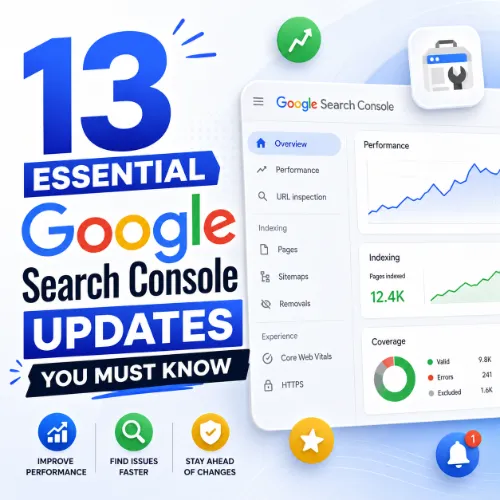
Google Search Console updates Key Takeaways
Staying on top of the latest Google Search Console updates is essential for any SEO professional or site owner.
- The 2025 Google Search Console updates introduce new metrics for video indexing and Core Web Vitals reporting.
- Enhanced URL inspection tools now provide deeper crawl error explanations and indexation insights.
- Changes to the Performance report offer better filtering by search appearance and device.
What You Need to Know About the Latest Google Search Console Updates
Google Search Console remains the go-to free tool for understanding how Google views your site. Recent Google Search Console updates have introduced new reports, refined existing data, and improved the ways you can diagnose issues. Whether you’re a seasoned SEO or just getting started, these changes directly impact your workflow. For a related guide, see 15 Google Search Changes Hurting Organic Traffic: Expert Guide.
In this guide, we break down thirteen key updates—from expanded video indexing reports to improved manual action notifications. For each update, you’ll get a clear explanation, practical implications, and actionable steps you can take today.
13 Critical Google Search Console Updates for 2025
Below are the thirteen most important Google Search Console updates that you should integrate into your SEO routine.
1. Video Indexing Report
Google now provides a dedicated Video Indexing report within the Search Console. This report shows which videos on your site are indexed, any issues preventing indexing, and suggestions to fix them.
Why it matters: With video content growing rapidly, this update helps you ensure your videos appear in search results. You can now spot missing schema markup, unsupported file formats, or blocked resources directly from the console. For a related guide, see 7 Essential SEO Adjustments for the Latest Google Core Update.
Actionable tip: Check the report weekly. Add proper VideoObject structured data to every video page.
2. Core Web Vitals Enhancement – Interaction to Next Paint (INP)
Google has replaced First Input Delay with Interaction to Next Paint in the Core Web Vitals report. INP measures responsiveness more accurately.
Why it matters: Sites with poor INP scores may see ranking drops. The updated report highlights specific pages that need improvement.
Actionable tip: Use the report to identify pages with “poor” or “needs improvement” INP values. Optimize JavaScript execution and reduce main thread blocking.
3. Expanded Search Appearance Filters
The Performance report now includes more granular filters for search appearance, such as “AMP,” “Job posting,” and “Recipe.” This makes it easier to understand traffic sources.
Why it matters: You can now isolate performance for specific rich result types and compare them against overall traffic.
Actionable tip: Set up custom date ranges and apply the new filters monthly to track rich result performance trends.
4. Index Coverage Report – Enhanced Insights
Google has updated the Index Coverage report to provide clearer reasons for why pages are excluded from the index. You’ll see more specific error codes and suggestions.
Why it matters: Ambiguous errors are now replaced with precise explanations, saving you time during site audits.
Actionable tip: Review the report weekly. Prioritize “Submitted URL blocked by robots.txt” errors—these are often easy fixes.
5. Manual Actions – Improved Notifications
Manual action notifications now include more context, including the specific policy violated and example URLs. The redesign makes it easier to understand what triggered the penalty.
Why it matters: Faster resolution of manual actions reduces ranking impact. Clearer guidance helps you address the root cause.
Actionable tip: Set up email alerts for manual actions. As soon as you receive one, use the new details to draft a reconsideration request.
6. URL Inspection Tool – Deeper Crawl Data
The URL Inspection tool now shows the exact crawl request and response headers, plus a timeline of recent crawling activity.
Why it matters: You can debug crawling issues more effectively—especially when pages are being crawled but not indexed.
Actionable tip: For pages that are not indexed despite being crawled, use the new timeline to check if Google encountered a temporary error that has since resolved.
7. Links Report – New Lost/New Linking Domains
The Links report now includes dedicated sections for “New linking domains” and “Lost linking domains” over a selected time period.
Why it matters: You can monitor your backlink profile more proactively and identify sudden drops or gains in referring domains.
Actionable tip: Export the “Lost linking domains” list monthly. If you notice a high drop-off, investigate whether those sites went offline or removed links due to a site change.
8. Sitemaps Report – Indexing Request Validation
When you submit a sitemap, Search Console now runs a validation check before accepting it, alerting you to formatting errors early.
Why it matters: This prevents wasted crawling on malformed sitemaps and ensures your new content is discovered quickly.
Actionable tip: Always use the “Validate” button after uploading a sitemap. Fix any reported errors before the next crawl.
9. Page Experience Report – Mobile Usability Integration
The Page Experience report has merged mobile usability data directly into the main dashboard, alongside Core Web Vitals and HTTPS security.
Why it matters: You now have a single view of all user experience signals, making it easier to prioritize fixes.
Actionable tip: Check the integrated report quarterly. Address any mobile usability issues listed—these can directly impact mobile rankings.
10. Security Issues – Real-Time Alerts
Security issue notifications are now delivered in near real time, along with a severity rating and recommended fix.
Why it matters: Faster alerts help you contain malware or phishing attacks before they affect user trust or rankings.
Actionable tip: Integrate Search Console with your email and mobile push notifications. Respond to critical alerts within 24 hours.
11. Shopping Tab Performance Report
For e‑commerce sites, Search Console now offers a dedicated Shopping tab performance report. It shows clicks, impressions, and CTR specifically from the Shopping tab.
Why it matters: You can measure the impact of your product data feeds on Shopping visibility and optimize them separately from organic listings.
Actionable tip: Review this report weekly during peak shopping seasons. Adjust your product titles and feed data based on what’s driving impressions.
12. Discover Report – Content Category Breakdown
Google Discover now includes a content category breakdown in the Performance report. You can see which topics drive Discover traffic.
Why it matters: This helps content creators understand what kind of evergreen or trending content resonates in the Discover feed.
Actionable tip: Use the category filter to identify top‑performing content types. Create more articles in those categories while maintaining high editorial standards.
13. API – Expanded Data Exports
Search Console’s API now supports exporting performance data for up to 16 months and includes new dimensions like “country” and “device.”
Why it matters: Advanced users can build custom dashboards and historical trend analyses directly in Google Sheets or Looker Studio.
Actionable tip: Set up a scheduled export to your data warehouse. Combine Search Console data with analytics data for a complete performance picture.
SEO Entities and Their Functions
Understanding the entities involved in Google Search Console updates helps you make sense of the data.
- Website / Domain entities: Root domain, subdomain, and URL‑level analysis help you determine whether performance issues affect your entire site or a specific section.
- Keyword entities: Organic keywords, search volume, keyword difficulty, and SERP features show demand and competition. Use the Performance report to see which keywords drive impressions.
- Page entities: Top pages, best by links, and broken pages reveal which URLs earn visibility or need repair.
- Backlink entities: Referring domains, anchor text, dofollow/nofollow links, and lost backlinks help you monitor link quality and outreach priorities.
- Technical SEO entities: Crawl issues, redirect chains, canonicals, and indexability status expose obstacles to ranking.
Useful Resources
Deepen your understanding of Google Search Console updates with these authoritative sources:
- Google Search Console Documentation – Official documentation covering all reports and settings.
- Search Engine Journal’s GSC Updates Archive – Regularly updated news about changes to Search Console.
Frequently Asked Questions About Google Search Console updates
What are the most important Google Search Console updates for 2025?
The most impactful include the Video Indexing report, INP in Core Web Vitals, enhanced URL inspection, and the new Performance report filters. Each helps you monitor and improve site visibility more precisely.
How often does Google update Search Console?
Google rolls out minor changes weekly or bi‑weekly, with major updates happening a few times per year. The 2025 updates listed here are some of the most significant in recent years.
Do I need to take action after a Search Console update?
Yes—review the update summary in your dashboard and check whether any new reports require your attention. Most updates provide actionable data that can improve site performance.
Will the new Video Indexing report affect my rankings?
Not directly, but fixing video indexing issues can lead to more video rich results in SERPs, which may improve click‑through rates.
What does INP replace in Core Web Vitals?
INP replaces First Input Delay. It measures the time from a user’s interaction (click, tap, keypress) until the page responds. A good INP is under 200 milliseconds.
How do I use the new search appearance filters?
Go to Performance > New > Search appearance. Select the rich result type you want to analyze, such as “Recipe” or “Job posting.” Then compare data over your chosen time range.
Can I export the Lost linking domains report?
Yes, the Links report now has an export button. You can download lost and new linking domains as CSV files for further analysis.
What should I do if a sitemap validation fails?
Check the error message—common issues include wrong date format, non‑absolute URLs, or unsupported namespace. Fix the sitemap, re‑upload, and validate again.
Are manual action notifications more detailed now?
Yes, new notifications include the policy name, a short explanation, and example URLs that triggered the penalty. This helps you craft a precise reconsideration request.
How do I set up real‑time security alerts?
In the Security Issues section, click the bell icon to enable email notifications. You can also integrate with Slack or webhooks using the Search Console API.
Does the Shopping tab report work for all products?
It works for products listed via Google Merchant Center and eligible for the Shopping tab. If your product data feed has errors, the report may show zero impressions.
How can I get content category breakdowns in Discover?
In the Performance report, select “Discover” from the search type filter. Then add the “Category” dimension to see which topics drive the most traffic.
What data does the API support now?
The API supports exporting clicks, impressions, CTR, and position for up to 16 months. You can also pull data broken down by country, device, and search appearance.
Are the Index Coverage error messages more helpful?
Yes, instead of generic “Error” labels, you now see specific reasons like “Page with redirect” or “Submitted URL blocked by robots.txt,” with direct links to affected pages.
Should I stop using third‑party SEO tools because of these updates?
No—third‑party tools complement Search Console by offering historical data, competitive analysis, and AI insights. Use both together for a complete view.
How do I check if my site is affected by a new update?
Log into Search Console and look for notification badges in the sidebar. Also check the “All messages” section for update summaries from Google.
Can I revert to the old interface if I don’t like the changes?
Google has phased out the legacy interface. You cannot revert, but you can use the help forums to provide feedback or request improvements.
What is the best way to stay informed about future updates?
Follow the Google Search Central blog and enable in‑tool notifications. Also subscribe to SEO news sites that cover Search Console changes.
Do the updates affect how I should structure my site audits?
Yes—incorporate the new reports into your audit checklist. For example, check the Video Indexing report and the new INP data as part of your monthly technical review.
How long does it take for data to appear after an update?
Most updates take effect immediately for new data, but historical data may be recalculated over a few days. Check the “Data freshness” indicator in each report.